Device connection guides

Connect health apps and devices to StepSense Gold.

Step-by-step setup instructions for Apple Health, Health Connect, Fitbit, Garmin, WHOOP, Polar Flow, Samsung Health, and Zepp.

Apple Health connection screen in StepSense Gold
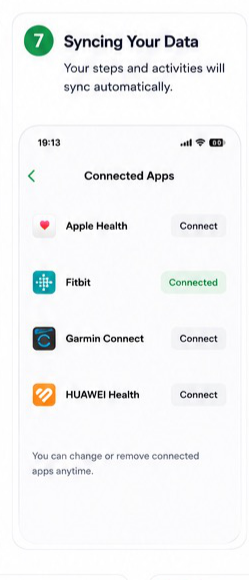
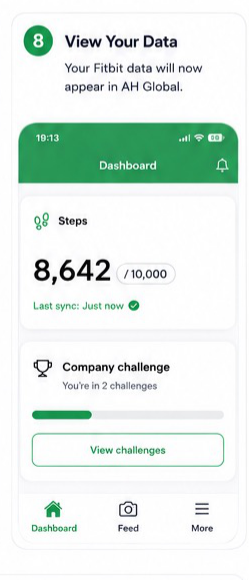
Fitbit connection setup screen
Samsung Health connection setup screen

Routing rule

Use the phone platform as the starting point.

On iPhone, StepSense Gold normally reads activity from Apple Health. On Android, StepSense Gold normally reads activity from Health Connect, unless the device connects directly through Fitbit or Garmin.

Apple Health Health Connect Samsung Health Fitbit Garmin WHOOP Polar Flow Zepp

Which guide should I use?

Pick the participant's device or health app.

Each option jumps to the relevant setup flow with written steps, notes, and visual references from the original connection guide.

Guide 01

Platform: Android

Samsung Health to Health Connect to StepSense Gold

Use this when a participant uses Samsung Health on Android. Samsung Health shares data with Health Connect, and StepSense Gold reads it from Health Connect.

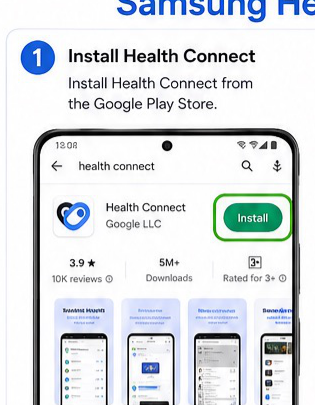
  1. Install Health Connect from the Google Play Store.
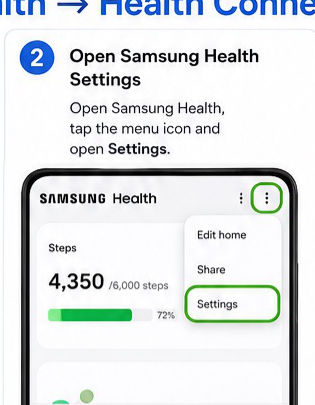
  2. Open Samsung Health, tap the menu icon, and open Settings.
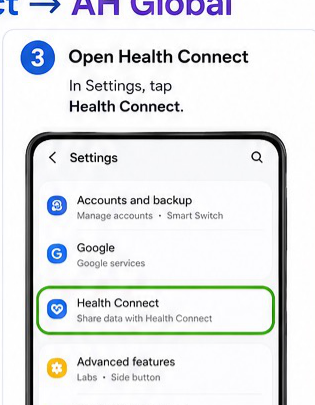
  3. In Settings, tap Health Connect.
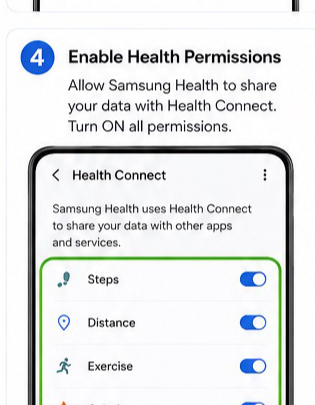
  4. Allow Samsung Health to share the required health data with Health Connect. Turn on all required permissions.
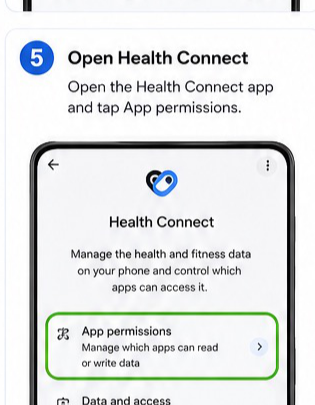
  5. Open the Health Connect app and tap App permissions.
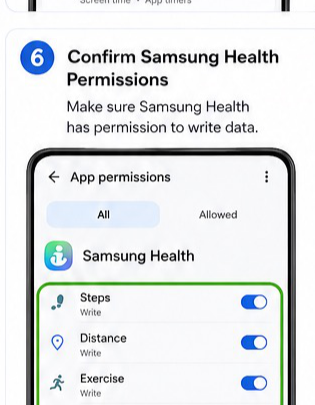
  6. Confirm Samsung Health has permission to write data such as steps, distance, exercise, and calories.
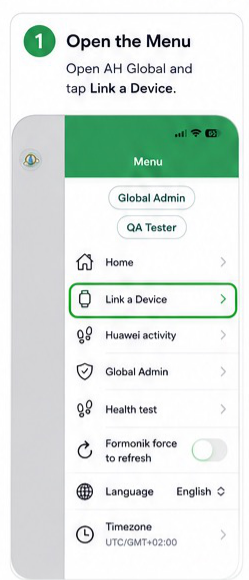
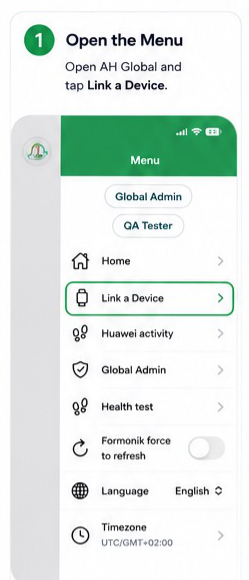
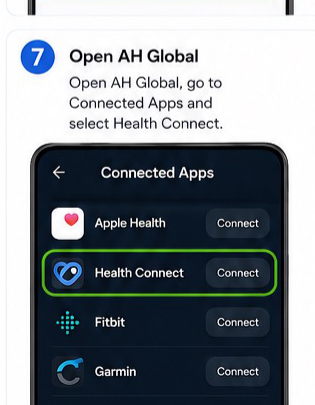
  7. Open StepSense Gold, go to Menu > Link Device, and select Health Connect.
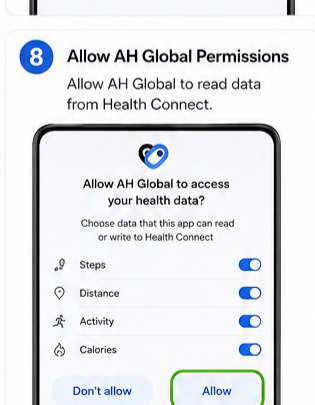
  8. Allow StepSense Gold to read data from Health Connect.
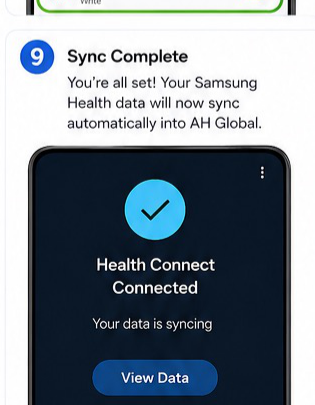
  9. Confirm the connection. Samsung Health data should now sync automatically into StepSense Gold.
  • Syncing may take a few minutes after setup.
  • If steps do not update, disable battery optimisation for Samsung Health, Health Connect, and StepSense Gold.

Visual step reference

Samsung Health to Health Connect visual step 1
Step 1
Samsung Health to Health Connect visual step 2
Step 2
Samsung Health to Health Connect visual step 3
Step 3
Samsung Health to Health Connect visual step 4
Step 4
Samsung Health to Health Connect visual step 5
Step 5
Samsung Health to Health Connect visual step 6
Step 6
Samsung Health to Health Connect visual step 7
Step 7
Samsung Health to Health Connect visual step 8
Step 8
Samsung Health to Health Connect visual step 9
Step 9
Guide 02

Platform: iPhone

Samsung Health to Apple Health to StepSense Gold

Use this when a participant uses Samsung Health on iPhone. Samsung Health writes data to Apple Health, and StepSense Gold reads the data from Apple Health.

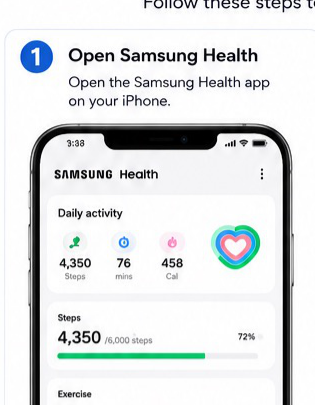
  1. Open the Samsung Health app on the iPhone.
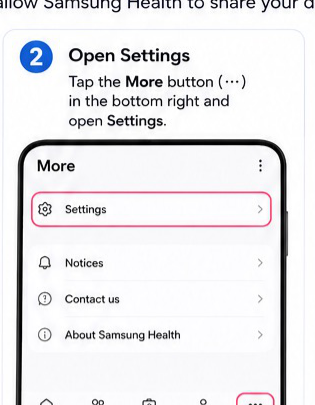
  2. Tap the More button, then open Settings.
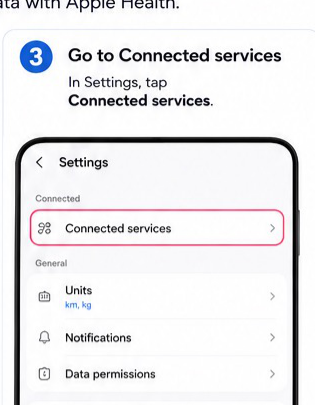
  3. In Settings, tap Connected services.
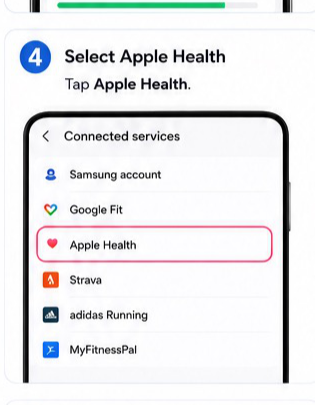
  4. Select Apple Health.
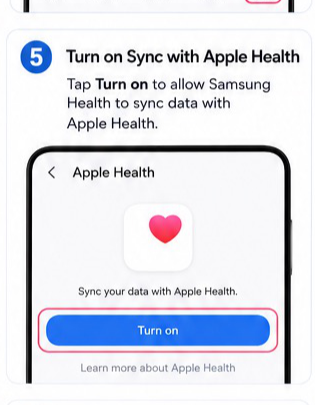
  5. Tap Turn on to sync Samsung Health data with Apple Health.
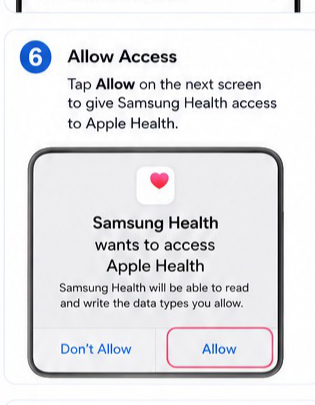
  6. Tap Allow when prompted to give Samsung Health access to Apple Health.
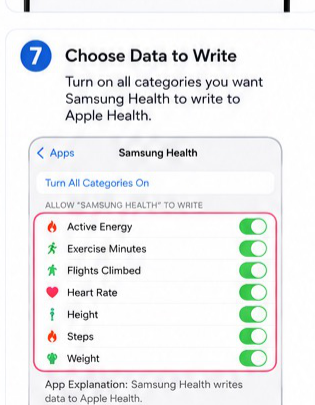
  7. Choose the data types Samsung Health may write to Apple Health, then turn on the required categories.
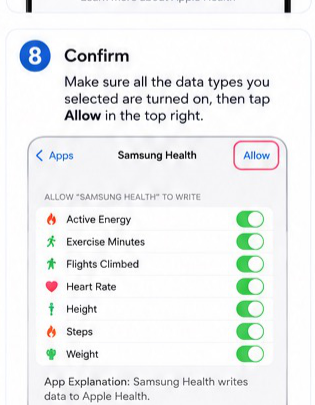
  8. Confirm the selected data types and tap Allow.
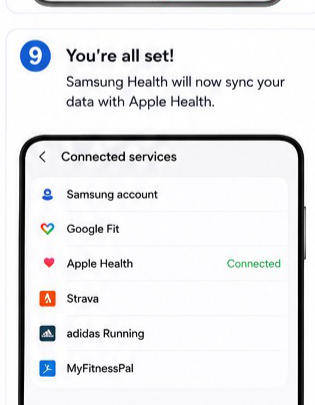
  9. Confirm the connection. Samsung Health should now sync data with Apple Health. Then open StepSense Gold, go to Menu > Link Device, select Apple Health, and allow all permissions.
  • Apple Health controls the primary source for steps and other data. If counts look incorrect, check Apple Health data source priority.
  • Syncing may take a few minutes after setup.

Visual step reference

Samsung Health to Apple Health visual step 1
Step 1
Samsung Health to Apple Health visual step 2
Step 2
Samsung Health to Apple Health visual step 3
Step 3
Samsung Health to Apple Health visual step 4
Step 4
Samsung Health to Apple Health visual step 5
Step 5
Samsung Health to Apple Health visual step 6
Step 6
Samsung Health to Apple Health visual step 7
Step 7
Samsung Health to Apple Health visual step 8
Step 8
Samsung Health to Apple Health visual step 9
Step 9
Guide 03

Platform: iPhone / Apple Watch

Apple Health / Apple Watch to StepSense Gold

Use this when a participant uses an Apple Watch or Apple Health on iPhone. StepSense Gold connects directly to Apple Health and reads approved activity data.

  1. Open StepSense Gold and tap Menu > Link Device.
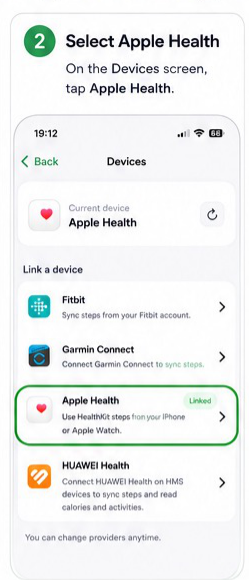
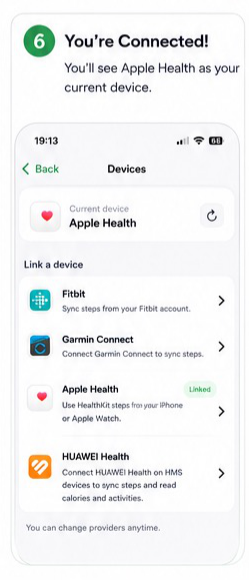
  2. On the Devices screen, select Apple Health.
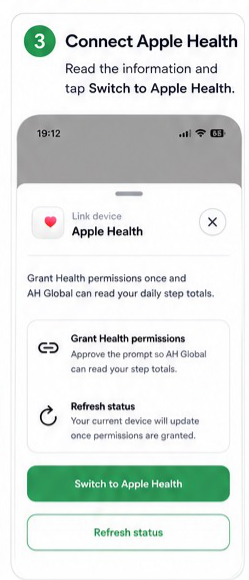
  3. Read the information, then tap Switch to Apple Health.
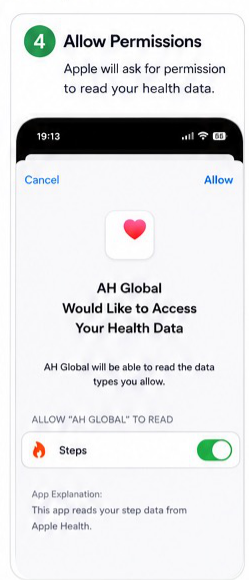
  4. Apple will ask for permission to read health data. Turn on the required data types, including Steps.
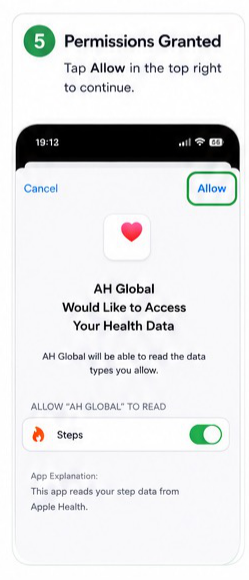
  5. Tap Allow in the top-right corner to continue.
  6. Confirm that Apple Health now appears as the current connected device.
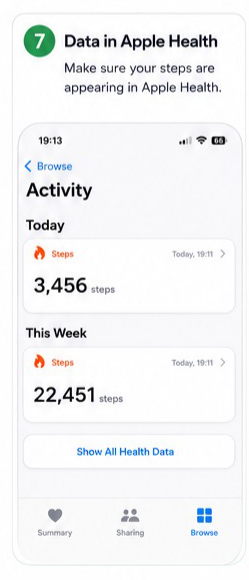
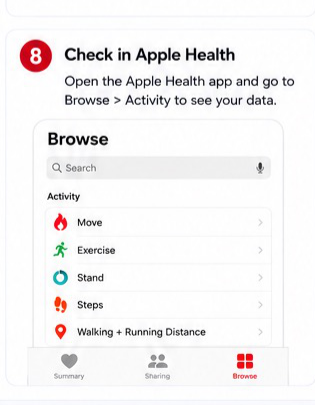
  7. Open Apple Health and check that steps are appearing under Activity.
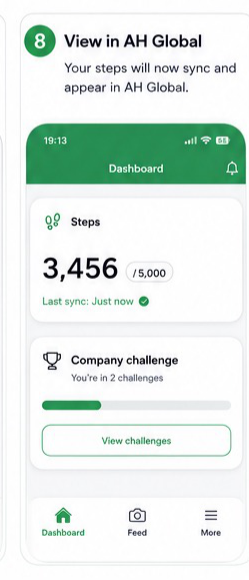
  8. Return to StepSense Gold and confirm the step data appears on the dashboard.
  • Apple Watch syncs through Apple Health; users do not need to connect the Apple Watch separately.
  • Opening Apple Health occasionally can help refresh syncing.

Visual step reference

Apple Health connection visual step 1
Step 1
Apple Health connection visual step 2
Step 2
Apple Health connection visual step 3
Step 3
Apple Health connection visual step 4
Step 4
Apple Health connection visual step 5
Step 5
Apple Health connection visual step 6
Step 6
Apple Health connection visual step 7
Step 7
Apple Health connection visual step 8
Step 8
Guide 04

Platform: iPhone or Android

Fitbit Connect to StepSense Gold

Use this when a participant wants to connect a Fitbit account directly to StepSense Gold.

  1. Open StepSense Gold and tap Menu > Link Device.
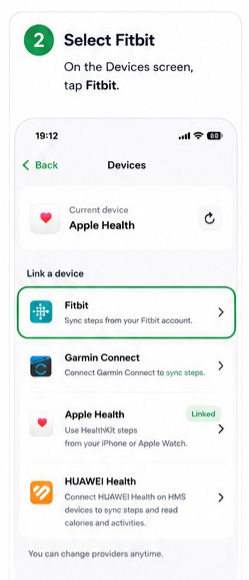
  2. On the Devices screen, select Fitbit.
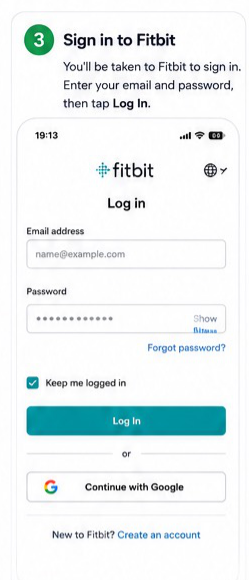
  3. Sign in to Fitbit using the participant's Fitbit account details.
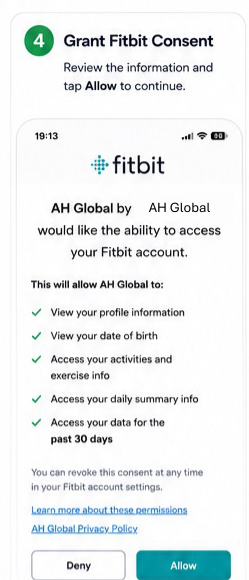
  4. Review the Fitbit consent information and tap Allow to continue.
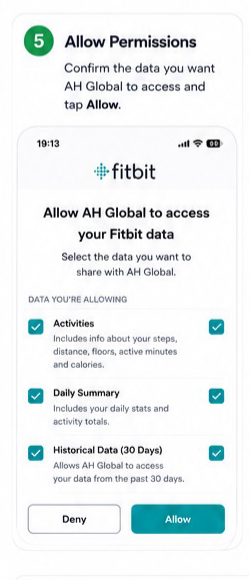
  5. Confirm the data types StepSense Gold may access and tap Allow.
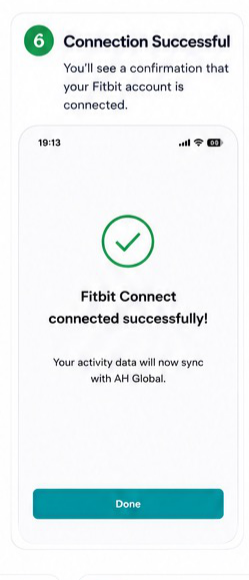
  6. Confirm the Fitbit Connect connection was successful.
  7. Wait for Fitbit steps and activity data to sync automatically.
  8. View the synced Fitbit data in StepSense Gold.
  • Fitbit Connect should be the primary device for steps if the participant is using Fitbit.
  • StepSense Gold reads activity-related data needed for steps and workouts.

Visual step reference

Fitbit connection visual step 1
Step 1
Fitbit connection visual step 2
Step 2
Fitbit connection visual step 3
Step 3
Fitbit connection visual step 4
Step 4
Fitbit connection visual step 5
Step 5
Fitbit connection visual step 6
Step 6
Fitbit connection visual step 7
Step 7
Fitbit connection visual step 8
Step 8
Guide 05

Platform: iPhone or Android

Garmin Connect to StepSense Gold

Use this when a participant wants to connect a Garmin account directly to StepSense Gold.

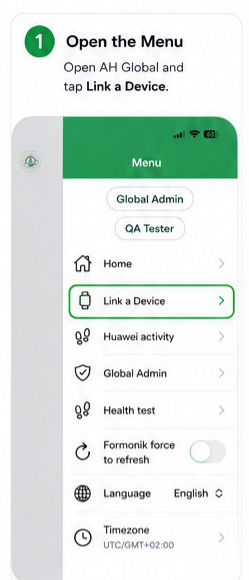
  1. Open StepSense Gold and tap Menu > Link Device.
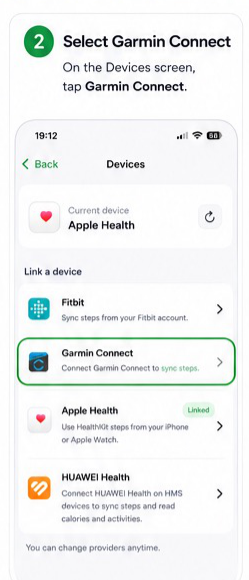
  2. On the Devices screen, select Garmin Connect.
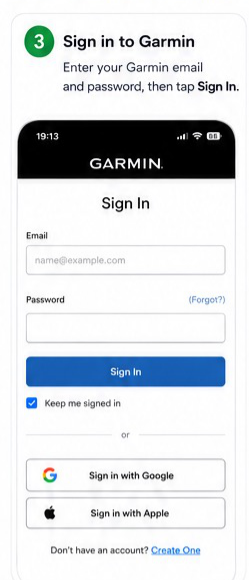
  3. Sign in to Garmin using the participant's Garmin account details.
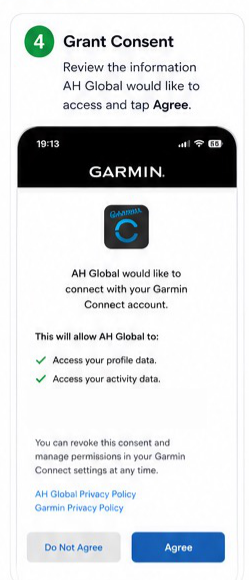
  4. Review the consent information and tap Agree.
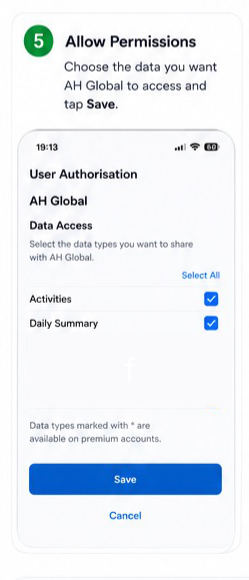
  5. Choose the data StepSense Gold may access and tap Save.
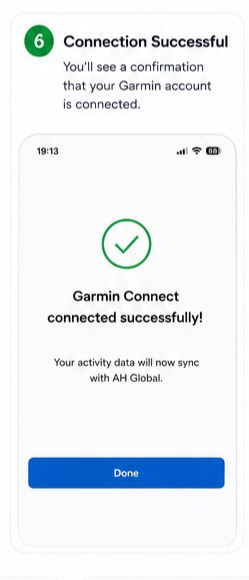
  6. Confirm the Garmin Connect connection was successful.
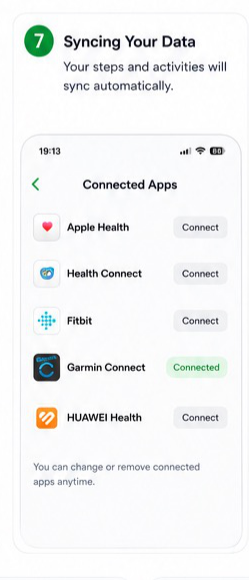
  7. Wait for Garmin steps and activities to sync automatically.
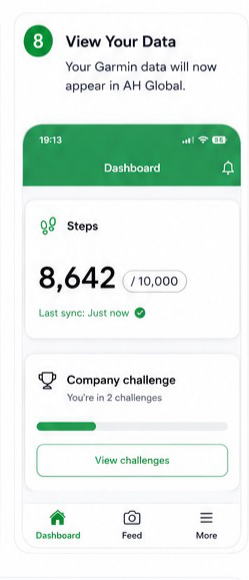
  8. View the synced Garmin data in StepSense Gold.
  • Garmin Connect should be the primary device for steps if the participant is using Garmin.
  • Users can reconnect or remove Garmin Connect later from Link a Device.

Visual step reference

Garmin connection visual step 1
Step 1
Garmin connection visual step 2
Step 2
Garmin connection visual step 3
Step 3
Garmin connection visual step 4
Step 4
Garmin connection visual step 5
Step 5
Garmin connection visual step 6
Step 6
Garmin connection visual step 7
Step 7
Garmin connection visual step 8
Step 8
Guide 06

Platform: iPhone

WHOOP to Apple Health

Use this when a participant uses WHOOP on iPhone and needs WHOOP data to be shared into Apple Health.

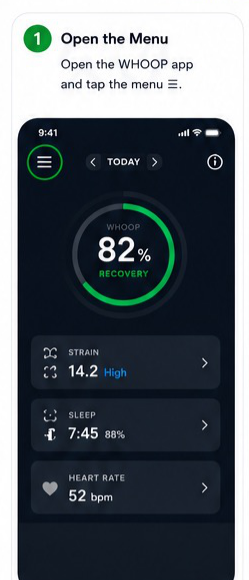
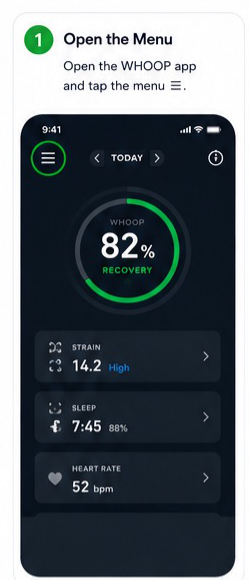
  1. Open the WHOOP app and tap the menu.
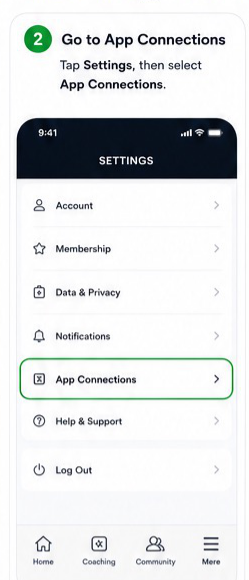
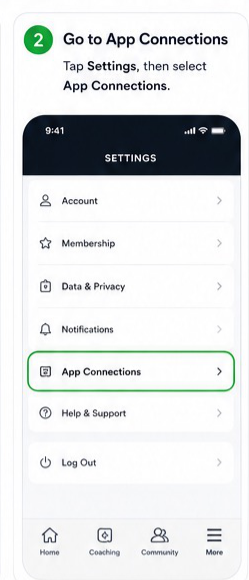
  2. Go to Settings and select App Connections.
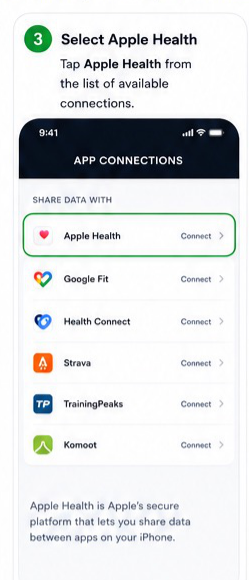
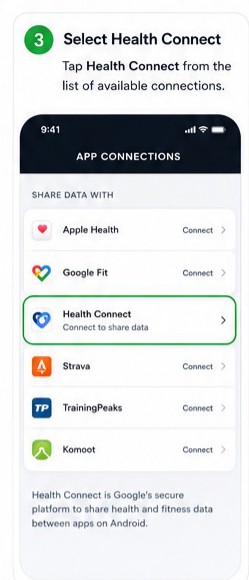
  3. Select Apple Health from the list of available connections.
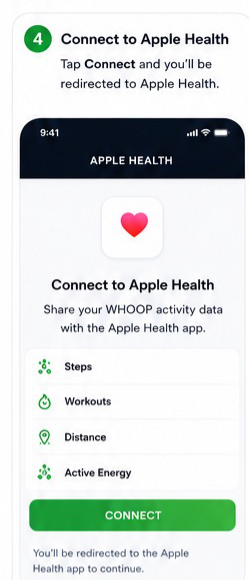
  4. Tap Connect to Apple Health.
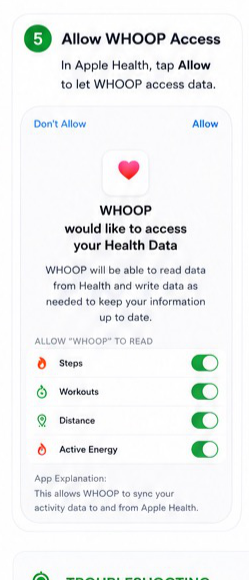
  5. Tap Allow when Apple Health asks for WHOOP access.
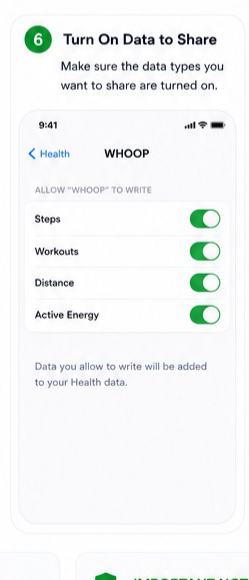
  6. Turn on the data types WHOOP should share, such as steps, workouts, distance, and active energy.
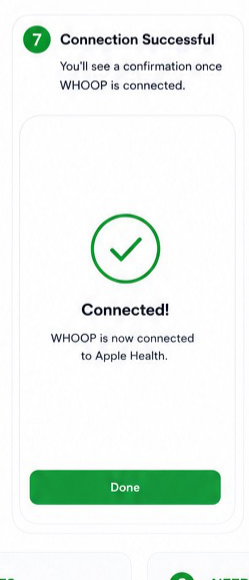
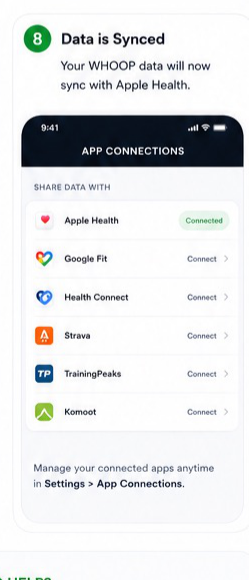
  7. Confirm the WHOOP to Apple Health connection was successful.
  8. Confirm that WHOOP data is now syncing to Apple Health. Then connect Apple Health in StepSense Gold if it is not already connected.
  • WHOOP writes selected data into Apple Health. StepSense Gold then reads from Apple Health.
  • Users can remove or change permissions later in Apple Health settings.

Visual step reference

WHOOP to Apple Health visual step 1
Step 1
WHOOP to Apple Health visual step 2
Step 2
WHOOP to Apple Health visual step 3
Step 3
WHOOP to Apple Health visual step 4
Step 4
WHOOP to Apple Health visual step 5
Step 5
WHOOP to Apple Health visual step 6
Step 6
WHOOP to Apple Health visual step 7
Step 7
WHOOP to Apple Health visual step 8
Step 8
Guide 07

Platform: Android

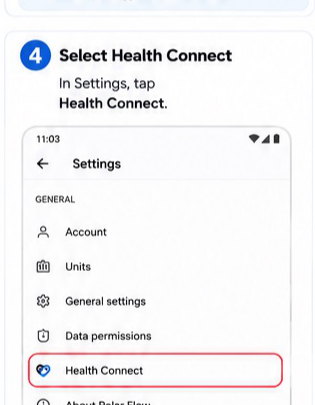
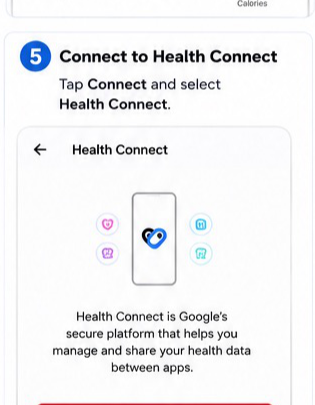
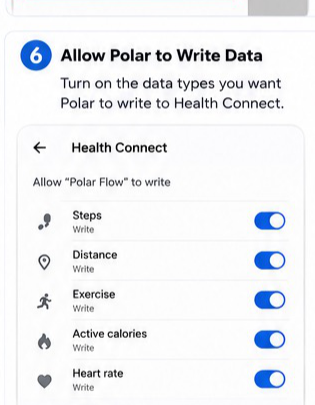
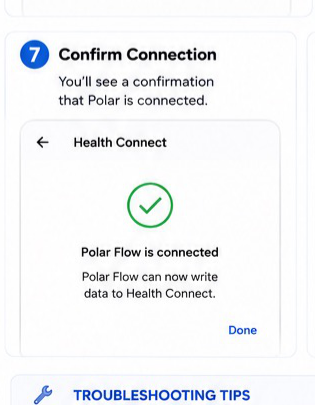
Polar Flow to Health Connect to StepSense Gold

Use this when a participant uses Polar Flow on Android. Polar Flow writes data to Health Connect, and StepSense Gold reads it from Health Connect.

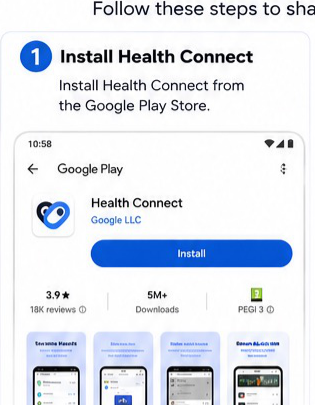
  1. Install Health Connect from the Google Play Store.
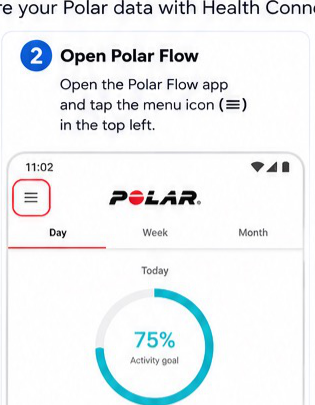
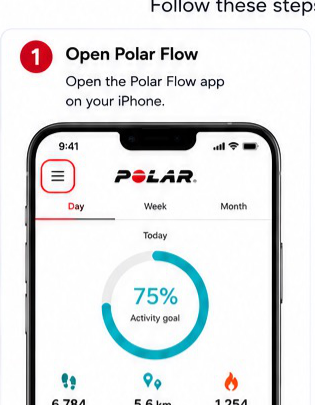
  2. Open the Polar Flow app and tap the menu icon.
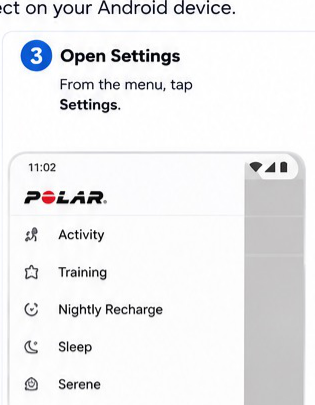
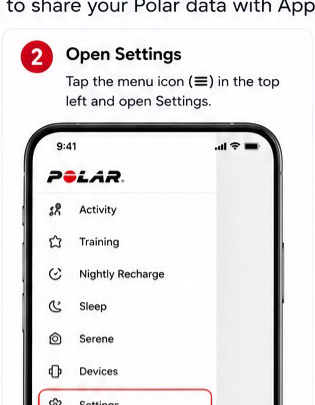
  3. Open Settings from the Polar Flow menu.
  4. In Settings, select Health Connect.
  5. Tap Connect and select Health Connect.
  6. Allow Polar Flow to write the required data types to Health Connect.
  7. Confirm that Polar Flow is connected.
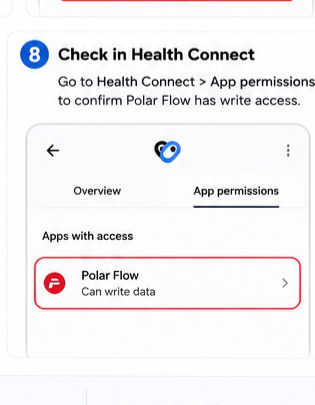
  8. Open Health Connect > App permissions and confirm Polar Flow has write access.
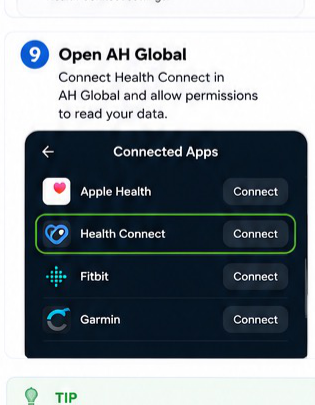
  9. Open StepSense Gold, go to Menu > Link Device, select Health Connect, and allow all permissions.
  • Make sure Polar Flow is updated to the latest version.

  • Syncing may take a few minutes after setup.
Visual step reference

Polar Flow to Health Connect visual step 1
Step 1
Polar Flow to Health Connect visual step 2
Step 2
Polar Flow to Health Connect visual step 3
Step 3
Polar Flow to Health Connect visual step 4
Step 4
Polar Flow to Health Connect visual step 5
Step 5
Polar Flow to Health Connect visual step 6
Step 6
Polar Flow to Health Connect visual step 7
Step 7
Polar Flow to Health Connect visual step 8
Step 8
Polar Flow to Health Connect visual step 9
Step 9
Guide 08

Platform: iPhone

Polar Flow to Apple Health to StepSense Gold

Use this when a participant uses Polar Flow on iPhone. Polar Flow writes data to Apple Health, and StepSense Gold reads it from Apple Health.

  1. Open the Polar Flow app on the iPhone.
  2. Tap the menu icon and open Settings.
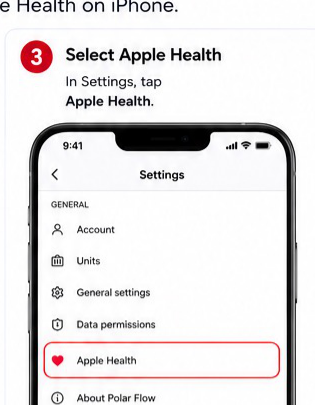
  3. In Settings, select Apple Health.
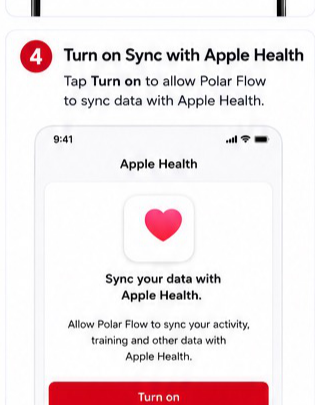
  4. Tap Turn on to sync Polar Flow data with Apple Health.
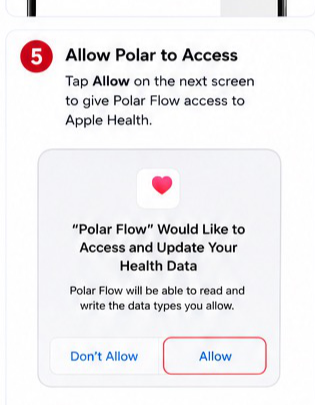
  5. Tap Allow when prompted to give Polar Flow access to Apple Health.
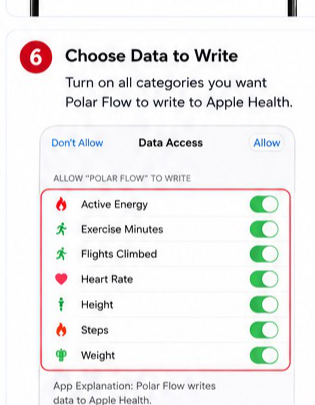
  6. Choose the data types Polar Flow may write to Apple Health.
  7. Confirm Polar Flow is connected to Apple Health.
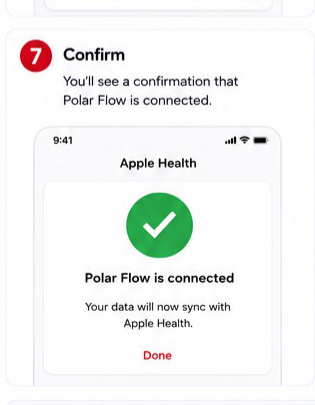
  8. Open Apple Health and check that the activity data appears under Activity.
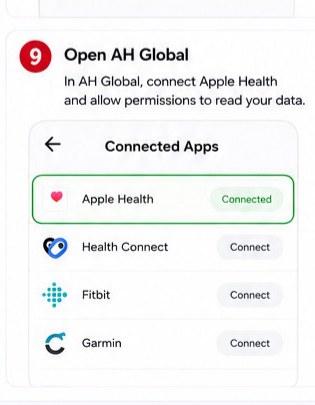
  9. Open StepSense Gold, connect Apple Health, and allow all permissions so StepSense Gold can read the data.
  • Polar Flow writes data to Apple Health; StepSense Gold reads data from Apple Health.
  • If data does not appear, open Polar Flow and pull down to refresh.

Visual step reference

Polar Flow to Apple Health visual step 1
Step 1
Polar Flow to Apple Health visual step 2
Step 2
Polar Flow to Apple Health visual step 3
Step 3
Polar Flow to Apple Health visual step 4
Step 4
Polar Flow to Apple Health visual step 5
Step 5
Polar Flow to Apple Health visual step 6
Step 6
Polar Flow to Apple Health visual step 7
Step 7
Polar Flow to Apple Health visual step 8
Step 8
Polar Flow to Apple Health visual step 9
Step 9
Guide 09

Platform: Android

WHOOP to Health Connect

Use this when a participant uses WHOOP on Android and needs WHOOP data to be shared into Health Connect.

  1. Open the WHOOP app and tap the menu.
  2. Go to Settings and select App Connections.
  3. Select Health Connect from the list of available connections.
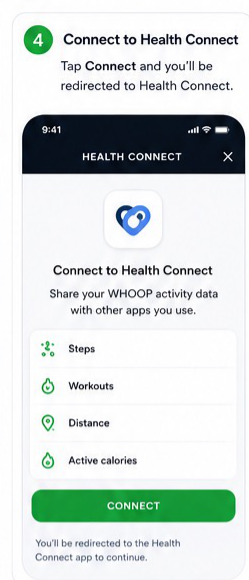
  4. Tap Connect to Health Connect.
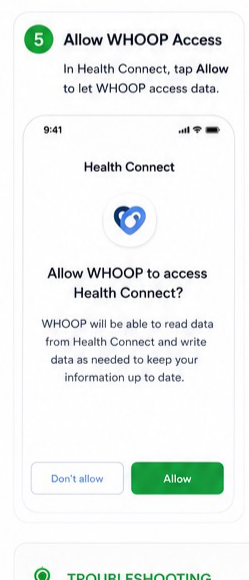
  5. Tap Allow when Health Connect asks for WHOOP access.
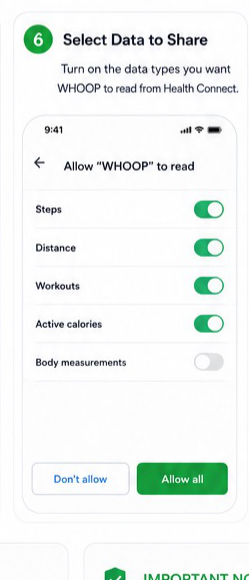
  6. Select the data types WHOOP may share with Health Connect.
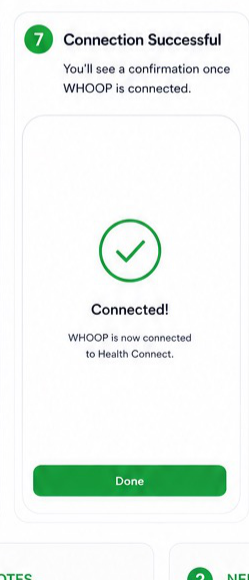
  7. Confirm the WHOOP to Health Connect connection was successful.
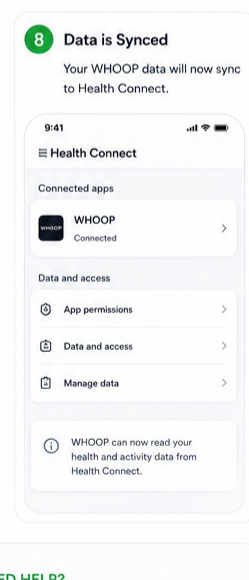
  8. Confirm that WHOOP data is syncing to Health Connect. Then connect Health Connect in StepSense Gold if it is not already connected.
  • Health Connect must be installed on the Android device.
  • Users can remove or change permissions later in Health Connect settings.

Visual step reference

WHOOP to Health Connect visual step 1
Step 1
WHOOP to Health Connect visual step 2
Step 2
WHOOP to Health Connect visual step 3
Step 3
WHOOP to Health Connect visual step 4
Step 4
WHOOP to Health Connect visual step 5
Step 5
WHOOP to Health Connect visual step 6
Step 6
WHOOP to Health Connect visual step 7
Step 7
WHOOP to Health Connect visual step 8
Step 8
Guide 10

Platform: Android

Zepp to Health Connect to StepSense Gold

Use this when a participant uses Zepp on Android. Zepp shares activity data with Health Connect, and StepSense Gold reads it from Health Connect.

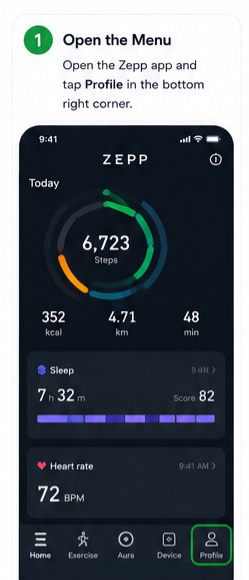
  1. Open the Zepp app and tap Profile in the bottom-right corner.
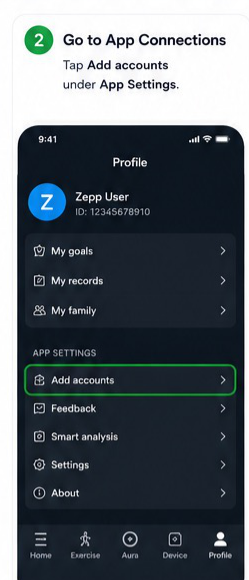
  2. Under App Settings, tap Add accounts.
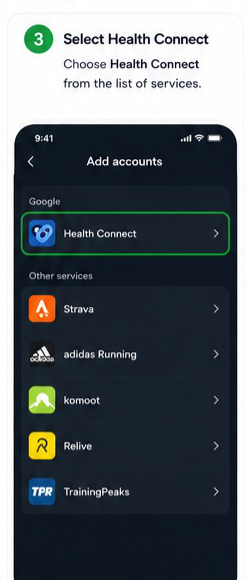
  3. Choose Health Connect from the list of services.
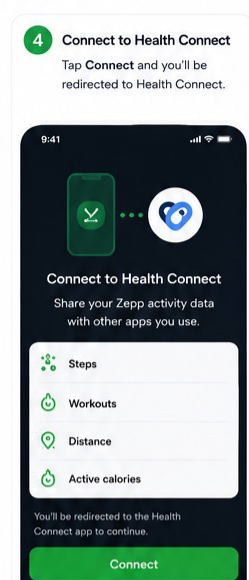
  4. Tap Connect to Health Connect.
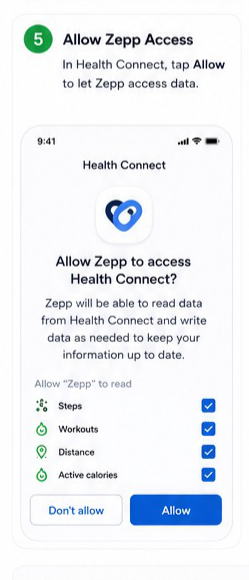
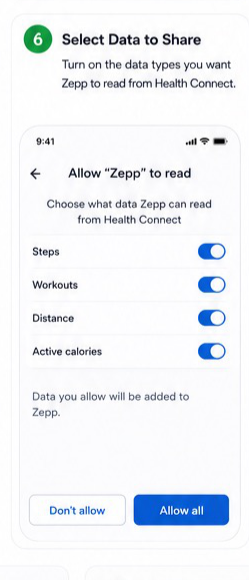
  5. Tap Allow when Health Connect asks for Zepp access.
  6. Select the data Zepp may share with Health Connect.
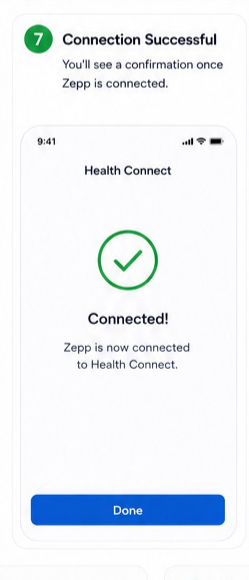
  7. Confirm the connection was successful.
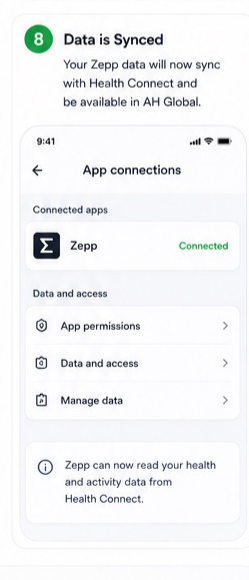
  8. Confirm Zepp data is syncing to Health Connect. Then open StepSense Gold, connect Health Connect, and allow all permissions.
  • Health Connect must be installed on the Android device.
  • If data is not showing, open Zepp and Health Connect, refresh, and check permissions.

Visual step reference

Zepp to Health Connect visual step 1
Step 1
Zepp to Health Connect visual step 2
Step 2
Zepp to Health Connect visual step 3
Step 3
Zepp to Health Connect visual step 4
Step 4
Zepp to Health Connect visual step 5
Step 5
Zepp to Health Connect visual step 6
Step 6
Zepp to Health Connect visual step 7
Step 7
Zepp to Health Connect visual step 8
Step 8

Need support?

Help participants get unstuck quickly.

If a connection does not refresh immediately, check permissions, open the source health app once, and allow a few minutes for the first sync.

Contact support